For families
Your child learns through your account, with your consent.
Your child's teacher invites you by email. You agree once, on your own account, and your child learns through it: no sign-in for the child, no ads, and nothing about them kept before you say yes.
Last checked
Four steps for a parent
It takes a few minutes, once for each school.
1. Open the invitation
The school or teacher emails you a link, valid for 30 days, and may share it with you another way. It holds only your email address and the class; nothing about your child is stored yet.
2. Sign in and confirm your email
Use a code sent to that email, or Google or Microsoft. There is no password to make. Your email address is confirmed before you go on.
3. Say who is learning
Choose children you already have there, or type each new child's first name. Say you are their parent or lawful guardian and 18 or over. The first time, you also set a four-digit passcode.
4. Agree
Read how your child's information is used, then agree. Only then is your child's place made. You can ask the school for anything the notice does not answer.
What a child can and cannot do
What they can do
Open the courses of the classes they are in, record takes, answer quizzes and assignments, read their lesson notes and the class board, and log their practice. YouTube and Vimeo videos play in their privacy-enhanced modes.
What they cannot do
Sign in alone, change your account, or open the pages for adults. They cannot comment on the board or ask for AI help. Nothing records when they leave a test page or how much they paste, their code is never kept as a replay of their typing, and a child's work is never sent to other systems a school connects.
Switching back to you
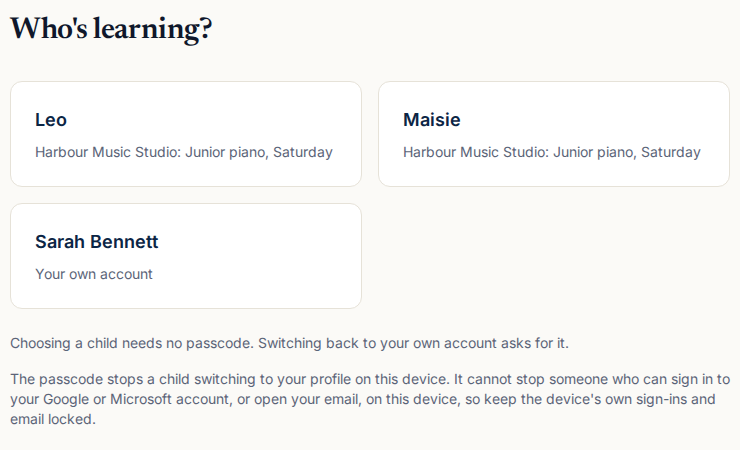
The family device shows Who is learning. Choosing a child needs no passcode; coming back to your own account asks for it. Five wrong tries lock it for 15 minutes, and you can reset it by email.
What parents see
Emails come to you
What the school would email a learner, such as grades, reminders, lesson notes and messages from the teacher, goes to you and names your child. Its links open that child’s page on your account.
Lesson notes and practice
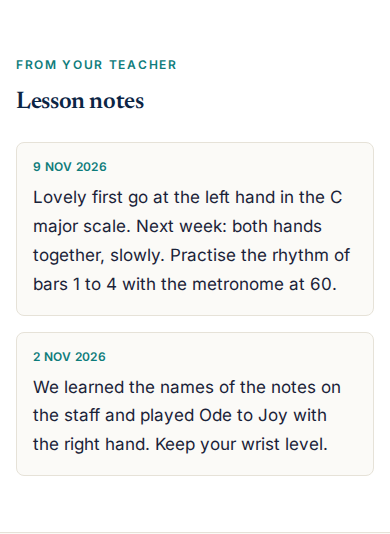
After a lesson your child's teacher can send a note about what to practise. You see it, and the practice your child logs against the goal.
Can't make it, and make-ups
If a school offers make-ups for one-to-one lessons, you tell it when your child cannot come, and book the make-up. Only you can do this, not your child on the family device.
Each school and its consent
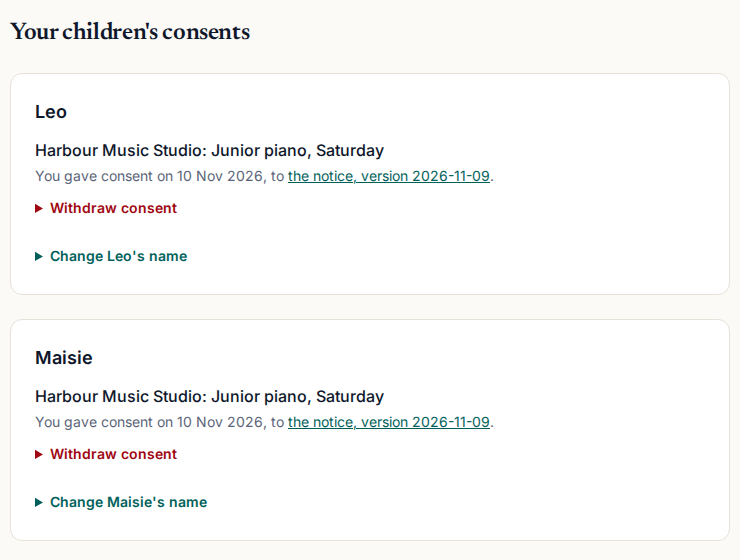
Your family page lists every child with each school, the class and the consent given, and shows the version of the notice you agreed to. You can correct a child’s first name there.
Withdrawing consent
- On your family page, choose a school and withdraw consent, with your passcode and your child's first name.
- Your child leaves that school's classes and its membership. The school's staff and you are emailed.
- If no school holds your consent any more, your child's records and stored files are erased, and the copies in our backups are deleted within 14 days. Only a record that consent was given and withdrawn stays, without their name.
Read how your child's information is used in full, and our commitments to schools.
Questions and answers
What is kept about my child?
Their first name as you give it, their recordings and answers, grades and comments, attendance, progress and, where the school uses them, their practice log, absences and make-ups, and any certificate. No date of birth, photo, address, phone number or email address of their own. The notice lists it all, and each version stays readable.
Who sees it?
The school's staff (its admins, and the teachers and assistants of your child's classes) and you. Our own support staff open it only to answer the school's support request, deal with a security problem or meet a legal duty. A certificate shows the child's first name and the school to anyone you give its link to.
How do I withdraw consent?
On your family page, for each school separately, with your passcode and your child's first name. Your child leaves that school's classes at once, and the school's staff and you are emailed. If your child is still with another school, this school keeps seeing their past work but can no longer grade it; if not, it is erased (below).
When is my child’s information erased?
When you withdraw the last consent, so no school holds one any more, your child's records and files are erased, and the copies in our backups are deleted within 14 days. A record that you agreed and withdrew is kept without your child's name, to show consent was asked for.
Is the passcode enough to keep my child out of my account?
It stops a child switching back to your account on the family device. It cannot stop someone who can already sign in to your Google or Microsoft account, or open your email, on that device.
Is this COPPA compliant?
We do not claim that. The consent flow is described here exactly as it works, and the notice says where your child’s information is kept. If you need a particular legal basis for your school, ask the school.
Are there ads or tracking?
No ads, and Google Analytics never loads for anyone signed in, a parent or a child. Lessons may embed videos or activities from YouTube, Vimeo, PhET, GeoGebra or Desmos, under their own terms.
Questions before you agree?
Parents: ask your child's school first, as it decides how the classes run, or write to us. Teachers: try it free with your own pupils.