Grading
Grade fairly, handle late work and answer a learner who disagrees
Mark with a rubric, see every learner against every item in a gradebook, set your own late-work rules and let learners ask for a second look, with each step recorded.
Last checked
Rubrics and the gradebook
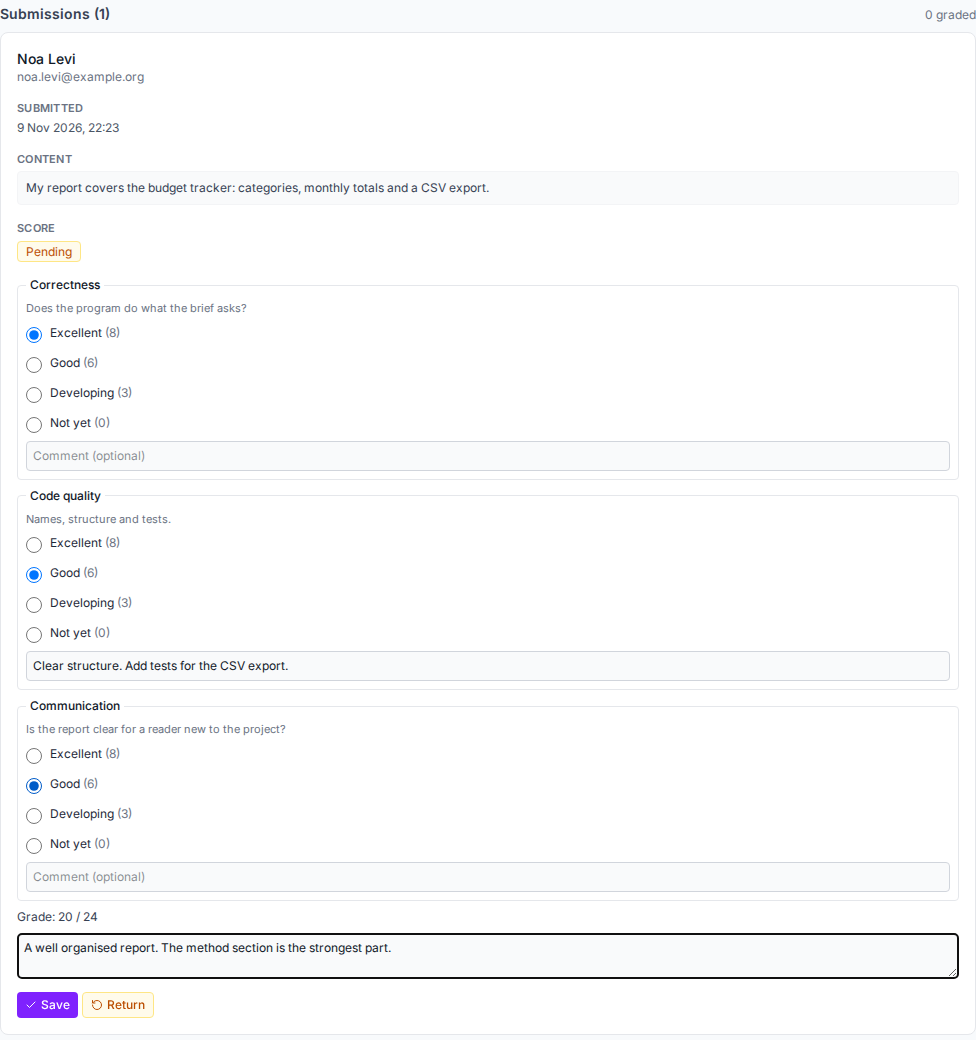
Rubrics
Build criteria with levels and points, choose a level for each, add a comment and see the total. Criteria and points are fixed once work has been graded, so marks stay comparable.
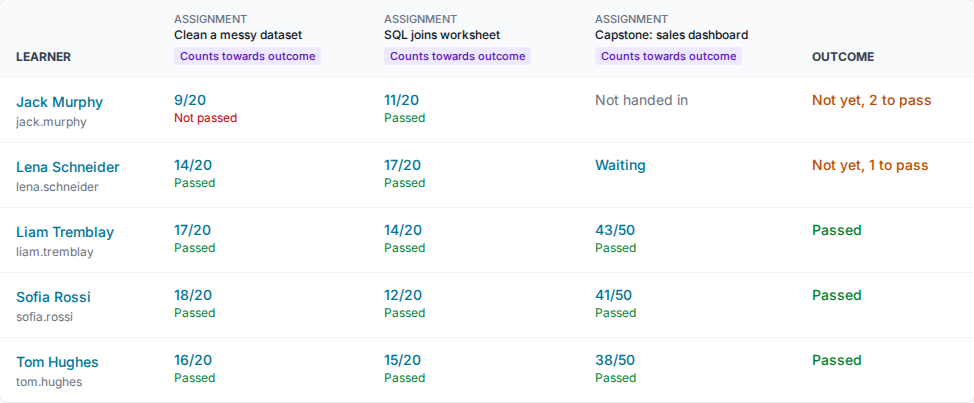
The gradebook
Each learner against every quiz and assignment in a batch, with an outcome: passed once every item you count towards it is passed. There is no weighted total, by design.
Learners see their marks
Learners have their own marks page, and the learner report shows the outcome.
Comments on lines of code
On a coding assignment or quiz, comment on a line or a range of lines of handed-in code. Learners read them with their result. On the Training plans.
Late work and extensions
Your rule, with exceptions
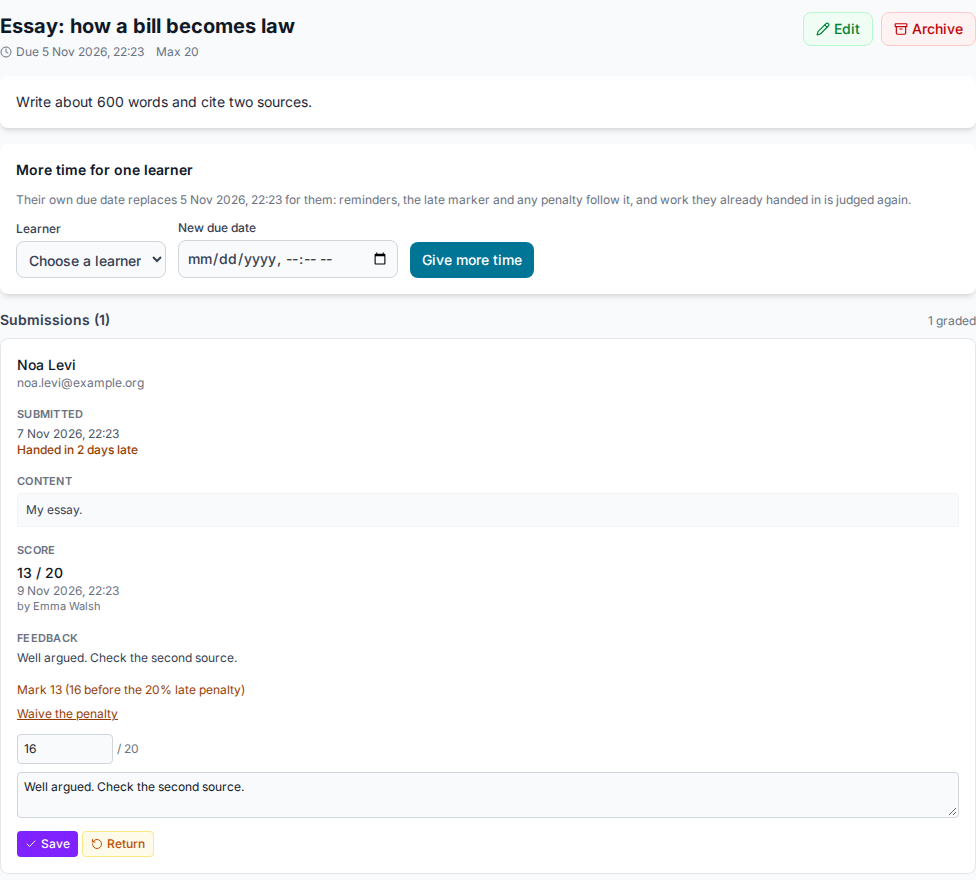
Set one rule for the institute: late work accepted or not, a cut-off in days, a penalty for each day and a floor. Any assignment can use its own rule instead.
A later date for one learner
Give one learner an extension on an assignment, or extra time on a batch quiz. Their reminders follow their own date.
Waive a penalty
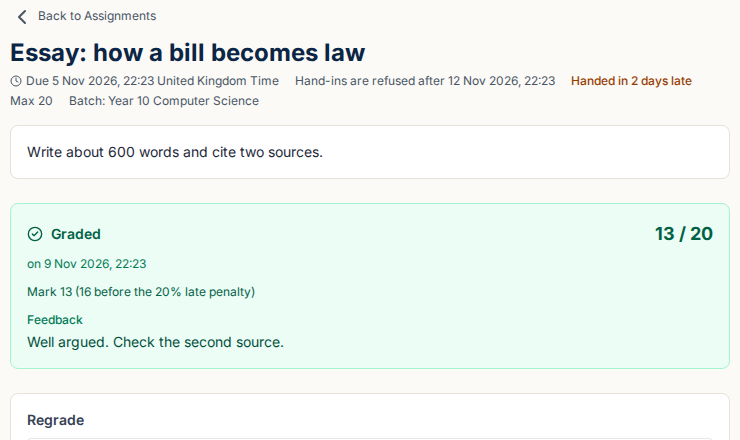
Staff can waive a penalty when it should not apply. The learner sees the mark before the penalty.
Regrade requests
Learners ask, with a reason
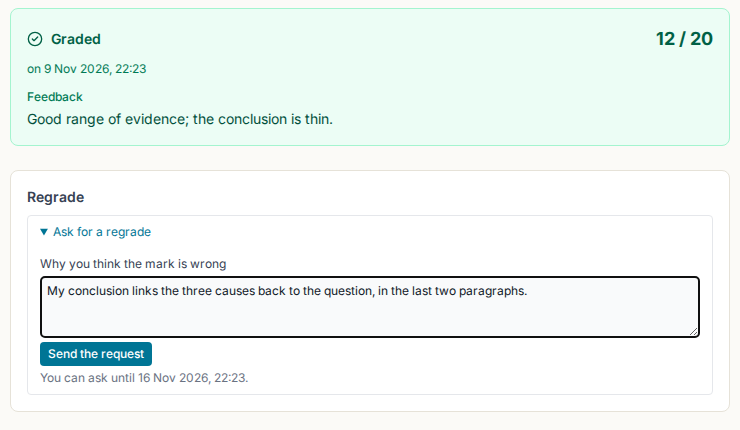
A learner asks for a mark to be looked at again and says why, within the days you allow, and only where you have switched requests on.
You keep or change it
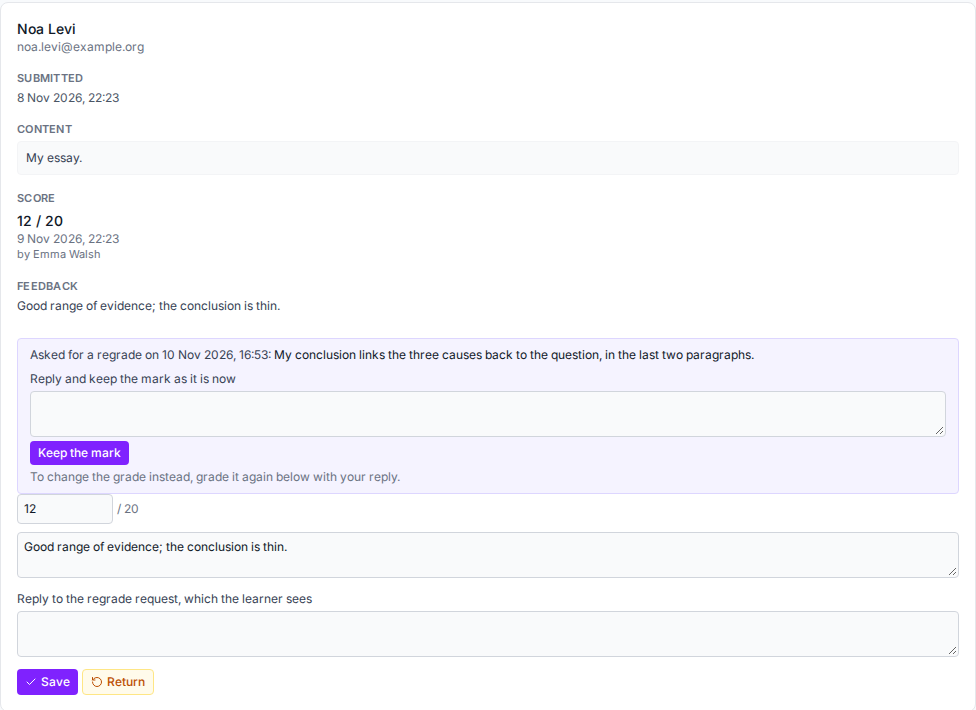
Staff reply and keep the mark, or change it in the same step. The learner is emailed the reply and sees the outcome, never who answered.
A record of each request
Each request keeps the mark before and after and the reply. Every request is kept, whatever its outcome.
Images show an imaginary school, Northfield Academy. See also coding assessment, academic integrity and student privacy, or step through the demo. For a department, see The Skill Site for universities.
Questions and answers
Which plans include these?
The gradebook, rubrics, late-work rules, extensions and regrade requests are in every plan, the Teacher plan included. Coding assignments, tests-based marks and comments on lines of code are Training features, so they are in the free trial, the free plan and the Training plans, not the Teacher plan.
Is there an overall weighted grade?
No. The gradebook shows each result and an outcome of passed or not yet, based on the items you choose to count. Weighting is left to you.
Is the default late rule strict?
No. Until you change it, late work is accepted with no penalty and only carries a late marker.
Does it support a campus LMS?
It connects to Moodle 4.5 through LTI 1.3. It has not been tested against Canvas or Brightspace.
Is this a FERPA or HECVAT answer?
No. The security, student data privacy and accessibility pages cover those, and the HECVAT is available on request.
Try it with your next cohort
Start a 30-day free trial with up to 30 learners and no card, or see the demo for your kind of class and book a call with us.